WhatsApp Business · 7 min read
WhatsApp Business App Setup in Nigeria: A Complete Step-by-Step Guide
How to install and set up the WhatsApp Business app in Nigeria, from choosing a number and building a profile to greeting messages, business hours and the difference between broadcast lists, Status and groups.
By Noah Precious · Published 4 May 2026 · Updated 28 October 2026
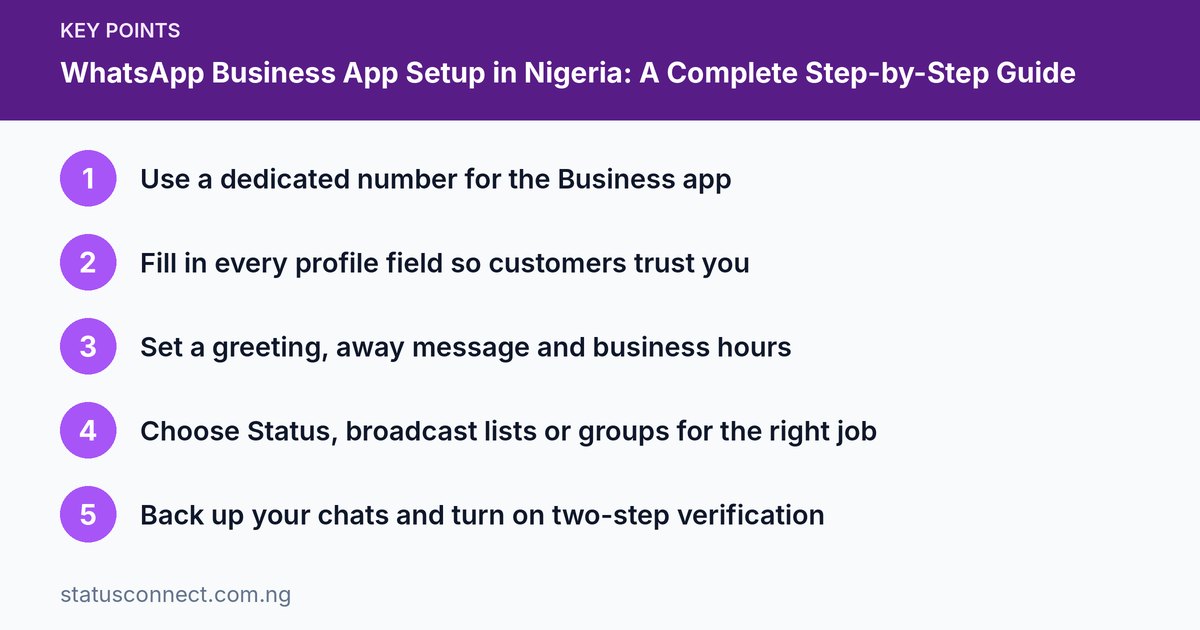
Key takeaways
- Use a dedicated number for the Business app
- Fill in every profile field so customers trust you
- Set a greeting, away message and business hours
- Choose Status, broadcast lists or groups for the right job
- Back up your chats and turn on two-step verification
The WhatsApp Business app is a free version of WhatsApp designed for small businesses. It adds a business profile, a catalogue, automatic messages, labels and basic statistics. If you sell on WhatsApp using a personal account, switching takes about twenty minutes and makes you look more professional and more reachable. This guide shows how to set it up properly, with Nigeria-specific advice on numbers, payments and customer habits.
WhatsApp Business app vs the personal app
The two apps look similar, but the Business app adds tools for selling:
- A business profile with description, address, hours, email and website.
- Catalogue to show products and prices inside WhatsApp.
- Quick replies, greeting and away messages.
- Labels to sort chats, such as New customer, Paid or Delivered.
- Basic message statistics.
A separate paid product, the WhatsApp Business Platform (API), is for larger companies that want automation through a provider. Most small Nigerian businesses only need the free app. You can read the official overview on the WhatsApp Business website.
Before you start: choose your number
You can run the Business app with the number you already use, or with a new SIM. Keep these points in mind:
- A dedicated number is best. It keeps customer chats separate from family and friends, and protects your private life.
- You can have both apps. A personal WhatsApp account and a Business account can be on the same phone only if they use different numbers.
- Keep the SIM active. WhatsApp sends a verification code by SMS or call. If your SIM expires or is recycled, you can lose the account. Recharge it regularly.
- Do not move your only business number casually. If customers already know it, migrating chats with a backup first protects your history.
Step 1: Install and register
Download WhatsApp Business from the Google Play Store or the Apple App Store. Check the publisher is WhatsApp LLC. Open the app, agree to the terms, enter your number and verify it with the code. Never share this code with anyone. Scammers use it to steal accounts, as we explain in our guide to spotting WhatsApp scams in Nigeria.
If you already use that number on regular WhatsApp, you can migrate your chats and media. Back up first, then follow the prompts.
Step 2: Build a trustworthy business profile
Open Settings, then tap your business name. Fill in everything:
- Business name. Use your real trading name. Avoid emoji spam or all caps.
- Profile photo. A clear logo or a good photo of your shop or product.
- Category. Pick the closest match, such as Fashion, Food, Beauty or Electronics.
- Description. One or two lines on what you sell and where you deliver.
- Address. Your shop or area, even if you deliver. It builds trust.
- Hours. Opening days and times.
- Email and website or social links. Add them if you have them.
A complete profile reduces "Are you real?" messages and makes customers more comfortable paying.
Step 3: Set up automatic messages
Go to Settings, Business tools. Turn on:
- Greeting message. Sent to new customers or people who have not messaged in 14 days. Example: "Hello and welcome to [Business]. Tell us what you are looking for and we will reply shortly."
- Away message. Sent outside your business hours. Example: "We are closed now. We open at 8am and will reply then."
- Quick replies. Saved answers triggered by typing a slash. Create ones for price lists, delivery fees, account details and "How to order."
These save hours every week. Our guide to catalogues, quick replies and labels explains how to use them well.
Step 4: Add your catalogue
Add your top products with a photo, name, price, description and link. Customers can browse without asking you for pictures all day. Start with ten to twenty items and update them when stock or prices change.
Step 5: Use labels to stay organised
Create labels such as New enquiry, Waiting for payment, Paid, Delivered and Follow up. Apply them to chats as you go. At the end of the day, filter by label to see who needs a reply. This simple system prevents lost orders.
Status, broadcast lists and groups: which to use
Each tool has a different job.
- Status reaches everyone who has your number saved and lasts 24 hours. Best for daily promotion and proof. See how to grow Status views.
- Broadcast lists send a message to many people individually. Recipients must have your number saved to receive it, and there is a limit on how many people a list can hold. Best for important updates to existing customers, such as restock alerts.
- Groups let people talk to each other. Best for communities and clubs. Do not add people without their consent.
Use Status to attract attention, broadcast lists to nudge existing customers and groups only where a real community exists.
Step 6: Protect your account
Turn on two-step verification in Settings, Account. Set a six-digit PIN and add an email so you can reset it. Also enable chat backup to Google Drive or iCloud. We cover this in how to protect your WhatsApp Business number with two-step verification.
Step 7: Learn the rules
WhatsApp can restrict accounts that send spam or unwanted messages. Message people who expect to hear from you, keep opt-outs easy and do not buy contact lists. Read what is allowed on WhatsApp marketing and the official WhatsApp Business policy pages.
Common setup problems and how to fix them
- Verification code does not arrive. Check network signal, wait for the countdown and then choose the call option. Confirm the SIM is active and not full of old messages blocking SMS.
- "This number is already in use" confusion. If you want to use the same number on regular WhatsApp and Business, you must choose one app for that number. Back up first, then migrate. See moving WhatsApp chats to a new phone for backup tips.
- Chats missing after migration. Restore from the same Google account or iCloud that holds your backup. Do not uninstall before the backup finishes.
- Customers cannot find your business. Check that the business name, category and description are filled in and that you are using the number your customers know.
- Away message sends at the wrong time. Re-check your business hours and time zone settings.
Habits that keep a new account healthy
Setting up the app is only the start. In the first month, reply to messages as quickly as you can, because speed is the biggest thing customers notice. Check your labels at the end of each day, and update your catalogue the moment a price or stock level changes. Keep your phone's WhatsApp updated, and review your profile now and then so the address, hours and description are still right. If you add staff to help with replies, agree on a few standard replies first so customers get the same tone from everyone.
Frequently asked questions
Is the WhatsApp Business app free?
The app itself is free to download and use for ordinary chatting with customers. Check the official WhatsApp Business pages for any paid features, since options change over time.
Can I use the Business app on two phones?
The main phone holds your account, and you can link other devices such as a laptop. Our guide on WhatsApp Web and linked devices explains how to do this safely.
Do customers know I am using a Business account?
Yes. Business accounts show a business label or profile information. This is helpful because it tells customers you are a real business with an address and hours.
Should I switch if I only sell a few items?
Probably yes. Even with a few items, the profile, quick replies and labels save time and make you look more established. Read our comparison of WhatsApp Business and WhatsApp Messenger to decide.
A first-day checklist
- Install the Business app and verify your number.
- Complete the profile, including address and hours.
- Set greeting and away messages.
- Create five quick replies.
- Add ten catalogue items.
- Create five labels.
- Turn on two-step verification and backups.
- Send your first Status announcing the new profile.
Do these and you will be more professional and faster to reply than most competitors.