Security & Privacy · 9 min read
WhatsApp Web and Linked Devices: How to Use Them Safely
Learn how WhatsApp Web, desktop and linked devices work, the risks on shared computers and QR scams, and how to review and log out devices safely.
By Noah Precious · Published 28 October 2026
Key takeaways
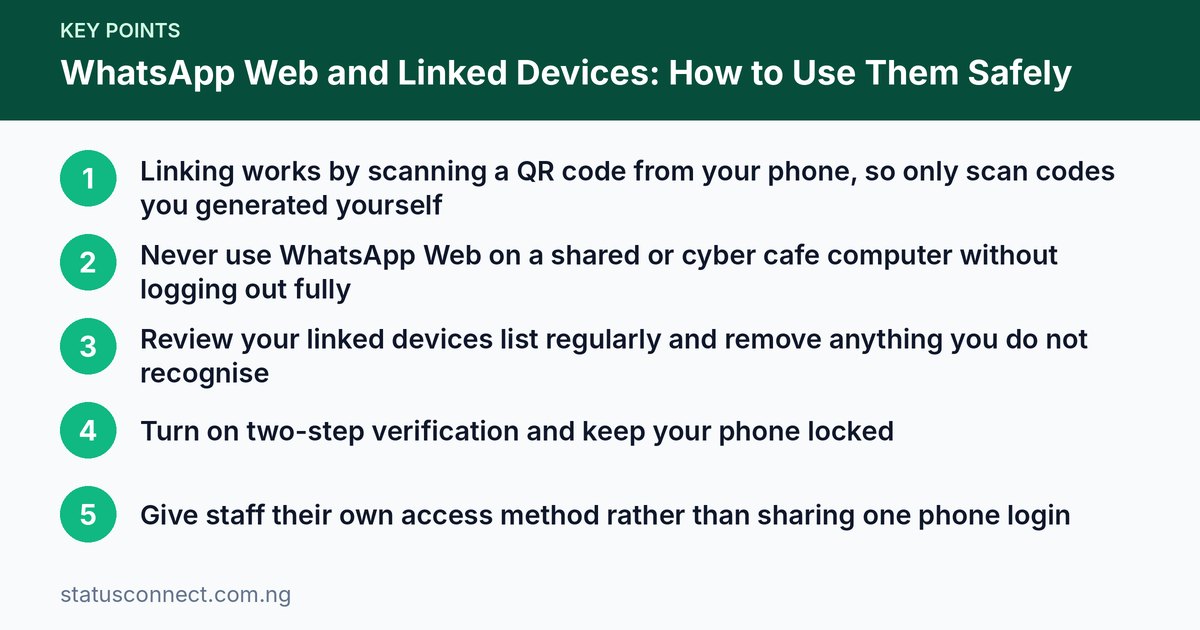
- Linking works by scanning a QR code from your phone, so only scan codes you generated yourself
- Never use WhatsApp Web on a shared or cyber cafe computer without logging out fully
- Review your linked devices list regularly and remove anything you do not recognise
- Turn on two-step verification and keep your phone locked
- Give staff their own access method rather than sharing one phone login
WhatsApp Web and the desktop app make life easier. You can type long replies on a keyboard, send documents saved on your laptop, and answer customers while you work. For many Nigerian sellers, freelancers and office workers, it is how they manage a busy inbox without staring at a small screen all day.
The same convenience carries risk. A linked device can read your messages, so a careless link on the wrong computer, or a fake QR code, can expose your private chats. This guide explains how linking works, where the real dangers are, and the habits that keep you safe.
How WhatsApp Web and linked devices work
Your WhatsApp account belongs to your phone number. To use it on a computer, tablet or second phone, you link that device to your account. The process works like this:
- You open WhatsApp Web in a browser, or open the WhatsApp desktop app.
- The screen shows a QR code.
- On your phone, you open the linked devices option in WhatsApp settings and choose to link a device.
- You scan the QR code with your phone camera.
- The computer is now connected to your account and shows your chats.
The QR code is basically a one-time key. Whoever scans it with a logged-in WhatsApp phone connects that screen to that account. That is the whole security idea, and also the reason scams around QR codes exist.
The multi-device system
WhatsApp now supports linking more than one device at a time, up to a limit set by WhatsApp, and linked devices can generally keep working even when your phone is off or not connected. WhatsApp has said that linked devices are meant to keep messages end-to-end encrypted. The exact number of devices and feature limits may change, so check the current help pages if you plan to depend on them.
Linked devices may disconnect if you do not use your phone for a long period, so open WhatsApp on the phone from time to time.
The real risks
1. Shared and public computers
Cyber cafes, school labs, office computers and a friend's laptop are the most common places for trouble. If you leave WhatsApp Web open, the next person who sits down can read your chats, send messages as you and see your files. Even if you close the browser tab, the session may still be active.
2. QR code scams
Scammers like to trick people into scanning a QR code that connects the scammer's computer to your account. It can look harmless, for example a message saying "scan to claim your reward" or "scan to verify your seller account." The rule is simple: the only QR code you should ever scan in the linked devices screen is the one you opened yourself, on your own computer. Nobody legitimate will send you a WhatsApp QR code and ask you to scan it. Read more patterns in our guide on spotting WhatsApp scams in Nigeria.
3. Fake websites and extensions
Be careful with search results and ads that imitate WhatsApp Web. Type the address yourself or use the official desktop app from a trusted app store. Be careful with browser extensions that claim to add features to WhatsApp, because an extension can read what is on your page.
4. Stalkerware and snooping
Stalkerware is spy software installed on a phone or computer to watch someone else's activity. It may be installed by a jealous partner, a dishonest employee or a person with brief access to your device. Sometimes a person with access to your phone can also quietly link their own computer to your account in a few seconds. This is why you should lock your phone and check your linked devices from time to time.
Signs of trouble can include a device in your linked list that you do not recognise, a battery that drains unusually fast, strange apps you did not install, or messages marked as read that you never opened. None of these proves a problem alone, but together they are a reason to check.
5. Malware on your computer
If your laptop has a virus, anything displayed on it may be seen by someone else. Keep your operating system and browser updated, and avoid pirated software, which is a common source of malware.
How to use WhatsApp Web safely: step by step
- Type the address yourself. Go to the official WhatsApp Web page, or install the desktop app from the official store.
- Use a trusted computer. Your own laptop or a work machine you control is best.
- Scan only the code on your own screen. Never scan a code sent to you by anyone.
- Skip "keep me signed in" on shared machines. On a computer others use, avoid options that remember you.
- Log out when you finish. Use the logout option inside WhatsApp Web, or end the session from your phone.
- Lock the computer when you leave your desk, even for a minute.
How to review and remove linked devices
Do this every few weeks, and any time you used a computer that is not yours.
- Open WhatsApp on your phone.
- Go to settings and look for linked devices. The location of this option varies by phone.
- You will see a list of connected devices, usually with the last active time.
- Tap any device you do not recognise or no longer use, and choose to log out.
- If you are unsure about the whole list, log out of all of them and link again only the ones you trust.
If you ever used a cyber cafe and forgot to log out, remove that session from your phone straight away. You do not need to be near the computer.
Add extra protection to your account
- Turn on two-step verification. It adds a PIN that protects your account if someone tries to register your number elsewhere. Our guide on two-step verification for a WhatsApp Business number shows what to set up.
- Use a screen lock on your phone, with a PIN, fingerprint or face unlock. Never share it.
- Do not share verification codes. WhatsApp support will not ask for your six-digit code.
- Keep apps updated. Updates often include security fixes.
- Back up your chats in case you need to start again. See how in our guide to moving WhatsApp chats to a new phone.
Using WhatsApp Web for business and with staff
Many Nigerian businesses let more than one person answer customers. A shop owner in Lagos might have a sales assistant, or a Port Harcourt vendor might share inbox duties with a sister. The risk is that the whole account is exposed to anyone with access. Consider these habits:
- Decide who needs access. Not every staff member needs full access to your chats and customer details.
- Use linked devices on company-owned equipment, not on staff members' personal laptops, if you can.
- Remove access immediately when someone leaves. Log out their device from your phone and change any shared passwords.
- Keep customer information private. Staff should not forward customer details or payment screenshots to outsiders. The rules for handling other people's contacts are covered in our article on the Nigeria Data Protection Act and WhatsApp contacts.
- Write down a short process for confirming payments, so no one releases goods based on a doubtful screenshot. See how to accept payments safely on WhatsApp.
- Consider whether the WhatsApp Business app suits you. Its features differ from the regular app, as explained in WhatsApp Business vs WhatsApp Messenger.
Larger companies with many agents may use the WhatsApp Business Platform through an approved provider. You can read the overview on the WhatsApp Business website.
Common mistakes to avoid
- Leaving WhatsApp Web open on a shared computer.
- Scanning a QR code from a message, post or stranger.
- Assuming a closed browser tab means you are logged out.
- Letting someone "just check something" on your unlocked phone.
- Installing unofficial WhatsApp apps or add-ons that promise extra features.
- Forgetting to remove an ex-employee's device.
What to do if you think someone is spying on your account
- Open the linked devices list and log out of everything.
- Turn on two-step verification and choose a PIN no one can guess.
- Change your phone lock and your Google or Apple account password.
- Update your phone, remove apps you do not recognise, and consider running a trusted security scan.
- Warn your close contacts if you think someone may have sent messages as you.
- If the situation involves harassment, threats or fraud, consider reporting it to the police or to the relevant authority. Laws and procedures may change, so check current guidance.
Frequently asked questions
Does WhatsApp Web work if my phone is off?
For many setups with the multi-device system, yes, for a period of time. Linked devices may log out if the phone is inactive for a long stretch, so open WhatsApp on the phone regularly.
Can someone read my chats if I forget to log out?
Yes, if they can use the device where you left the session open. That is why you should log out from shared computers, and remove forgotten sessions from your phone.
Is it safe to scan a WhatsApp QR code from a link someone sent me?
No. Only scan a code that appears on a screen you opened yourself. A code sent by another person could link their device to your account.
Will I see a notification when a device is linked?
You can always check the linked devices list on your phone. Notification behaviour may vary, so do not rely on alerts alone. Check the list yourself regularly.
Final thoughts
WhatsApp Web and linked devices are useful tools, and with a few habits you can enjoy them safely: link only on devices you trust, scan only your own QR code, review the device list often and log out when you are done. If you want help growing your network after securing your account, read our guide to growing a small business WhatsApp network in Nigeria.