Security & Privacy · 7 min read
How to Protect Your WhatsApp Business Number: Two-Step Verification, Backups and Account Recovery
Step-by-step instructions to turn on WhatsApp two-step verification, set up backups, spot account takeover attempts and recover a hijacked or stolen-number account in Nigeria.
By Noah Precious · Published 6 July 2026 · Updated 28 October 2026
Key takeaways
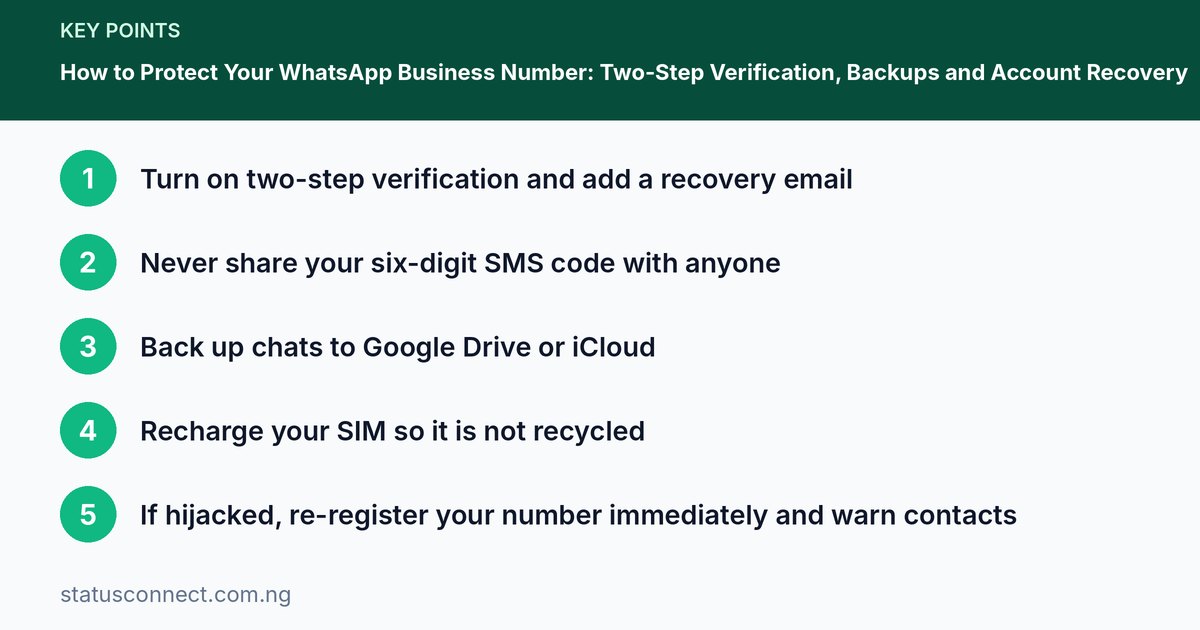
- Turn on two-step verification and add a recovery email
- Never share your six-digit SMS code with anyone
- Back up chats to Google Drive or iCloud
- Recharge your SIM so it is not recycled
- If hijacked, re-register your number immediately and warn contacts
Your WhatsApp Business number is tied to your income. Customers know it, your Status reaches people through it and your order history lives in its chats. If someone takes over that account, you can lose customers, money and reputation in a day. The good news is that a few settings and habits make takeover much harder. This guide shows how to set up two-step verification, back up your data, recognise attacks and recover your account if something goes wrong.
How accounts get stolen
Most WhatsApp takeovers do not involve hacking in the movie sense. They rely on tricking you or taking over your phone number:
- Verification code scam. Criminals trigger a code to be sent to your number, then trick you into sharing it, often by pretending to be a friend. See our guide to common WhatsApp scams in Nigeria.
- SIM swap or recycled numbers. If your SIM is stolen, swapped fraudulently or expires and is reassigned, someone else may register WhatsApp on that number.
- Unlocked phone. Someone with access to your phone can use WhatsApp Web or link a device.
- Malicious apps and fake WhatsApp versions. Unofficial apps can steal data.
Step 1: Turn on two-step verification
Two-step verification adds a six-digit PIN that is required whenever someone registers your number on a new phone. Even if a scammer gets your SMS code, they cannot finish registration without the PIN.
- Open WhatsApp or WhatsApp Business.
- Go to Settings, then Account, then Two-step verification.
- Tap Enable and choose a six-digit PIN. Do not use birthdays, phone numbers or repeating digits.
- Confirm the PIN.
- Add an email address you can access. This lets you reset the PIN if you forget it. Without it, you may be locked out for days.
- Confirm the email.
WhatsApp will occasionally ask you to enter the PIN to help you remember it. Never share this PIN or the SMS code with anyone. WhatsApp staff will not ask for them. See the WhatsApp Help Center for the latest instructions.
Step 2: Secure your phone
- Set a strong screen lock, such as a PIN or fingerprint.
- Turn on Find My Device (Android) or Find My (iPhone).
- Install apps only from the Play Store or App Store. Do not use modified WhatsApp versions.
- Keep your phone and apps updated.
- Review Linked devices in WhatsApp Settings regularly. Log out of any you do not recognise.
- Consider enabling fingerprint lock inside WhatsApp, under Settings, Privacy.
Step 3: Protect your SIM and number
- Recharge regularly so your SIM does not expire and get reassigned. If you use a dedicated business SIM, set a reminder.
- Ask your network provider about a SIM lock or PIN and what to do if your SIM is lost.
- Report a lost or stolen SIM immediately to your network so it can be blocked.
- Be careful where you reveal personal data, because SIM swap fraudsters use it to impersonate you.
Step 4: Back up your chats and contacts
Backups help you rebuild after a problem, though they do not stop a takeover by themselves.
- Chats: In Settings, Chats, Chat backup, choose Google Drive (Android) or iCloud (iPhone). Pick a frequency such as daily or weekly.
- Contacts: Make sure your phone contacts sync to Google or iCloud. Export a VCF file monthly. Our guide to VCF files and backups explains how.
- Catalogue and business info: Keep a list of your product names, prices and quick replies in a document, so you can recreate them.
- Important chats: Screenshot or export orders and payment proofs for records.
Step 5: Know the warning signs
- You receive SMS codes you did not request.
- WhatsApp asks you to verify your number unexpectedly.
- Friends say they got strange messages from you.
- You are logged out and cannot get back in.
- A linked device appears that you did not add.
If you receive an unexpected code, do not share it and do not click links. Consider turning on two-step verification if you have not already.
If your account is hijacked
Act quickly.
- Re-register your number on your phone. Open WhatsApp, enter your number and use the SMS or call code. This logs the criminal out because WhatsApp allows only one phone per account (apart from linked devices).
- Enter your two-step PIN if prompted. If the scammer enabled their own PIN, you may have to wait seven days before you can register without it. WhatsApp support can advise through the app's Contact Us option.
- Contact WhatsApp support from the app or by email and explain that your account was stolen.
- Warn your contacts on Status and in groups that your account was hijacked, so they ignore any requests for money.
- Check linked devices and log out of all.
- Report to your bank if the scammer asked for money from your contacts or accessed accounts.
- Change passwords on email and other accounts related to your number.
If your SIM is lost, stolen or swapped
Contact your network provider at once to block the SIM and get a replacement with the same number. Then re-register WhatsApp on the new SIM. Tell your bank if your number is linked to banking alerts or apps.
For businesses with several staff
- Do not let staff use your personal phone permanently. Use a business phone or the WhatsApp Business app's linked devices feature.
- Limit who knows the two-step PIN.
- Remove a staff member's access immediately when they leave.
- Keep a written record of who has access to which device.
Common mistakes that leave accounts exposed
- Using an easy PIN such as 123456 or the last six digits of your phone number. Choose something you can remember but others cannot guess.
- Setting a recovery email you no longer use. If you forget the PIN, that email is your only way back in. Check now that you can still log in to it.
- Writing the PIN on a note beside the shop phone. Staff, visitors and cleaners can all see it.
- Ignoring the "linked devices" list. Someone may have scanned a QR code on your phone while you looked away. Review it often.
- Lending your phone to a stranger who "just needs to make a quick call". Keep the phone in your hands.
- Reusing the same password everywhere. Your email account protects your WhatsApp recovery, so give it a unique strong password.
What to do when you lose your phone
A lost phone is stressful because it holds your business. Move through these steps in order.
- Use Find My Device or Find My to lock or erase the phone remotely.
- Contact your network provider to block the SIM and get a replacement with the same number.
- Install WhatsApp on a new phone, verify your number and enter your two-step PIN. WhatsApp will log the lost phone out.
- Restore your chats from backup if you had one turned on.
- Tell your regular customers on Status that you changed phones, in case scammers use the situation to confuse them.
Frequently asked questions
Will two-step verification stop all hacking attempts?
It stops the most common one, which is taking over your number using an SMS code. It does not protect you if you hand your PIN to someone or if your phone itself is unlocked and in the wrong hands, so combine it with a screen lock.
What if I forget my two-step PIN?
Use the "Forgot PIN" option and WhatsApp will send a reset link to your recovery email. If you never added an email, you may have to wait seven days before you can register again, and you may lose pending messages.
Does two-step verification make my chats end-to-end encrypted?
Personal chats are already encrypted by default. Two-step verification protects the registration of your number, not the encryption of messages.
Is it safe to use WhatsApp Web for my business?
Yes, if you use it on your own trusted computer and log out of shared machines. Our guide to using WhatsApp Web and linked devices safely covers the details.
A five-minute security checklist
- Two-step verification on, with recovery email.
- Screen lock and app lock enabled.
- Chat backup on.
- Contacts synced and exported.
- Linked devices reviewed.
- SIM recharged and registered in your name.
Security takes a few minutes now and can save your business later. Combine it with smart habits around accepting payments and following the WhatsApp marketing rules.