Contacts & VCF · 10 min read
How to Move WhatsApp Chats to a New Phone Without Losing Anything
A practical Nigerian guide to moving WhatsApp chats to a new Android or iPhone, using backups, keeping your number, and handling WhatsApp Business and lost phones.
By Noah Precious · Published 28 October 2026
Key takeaways
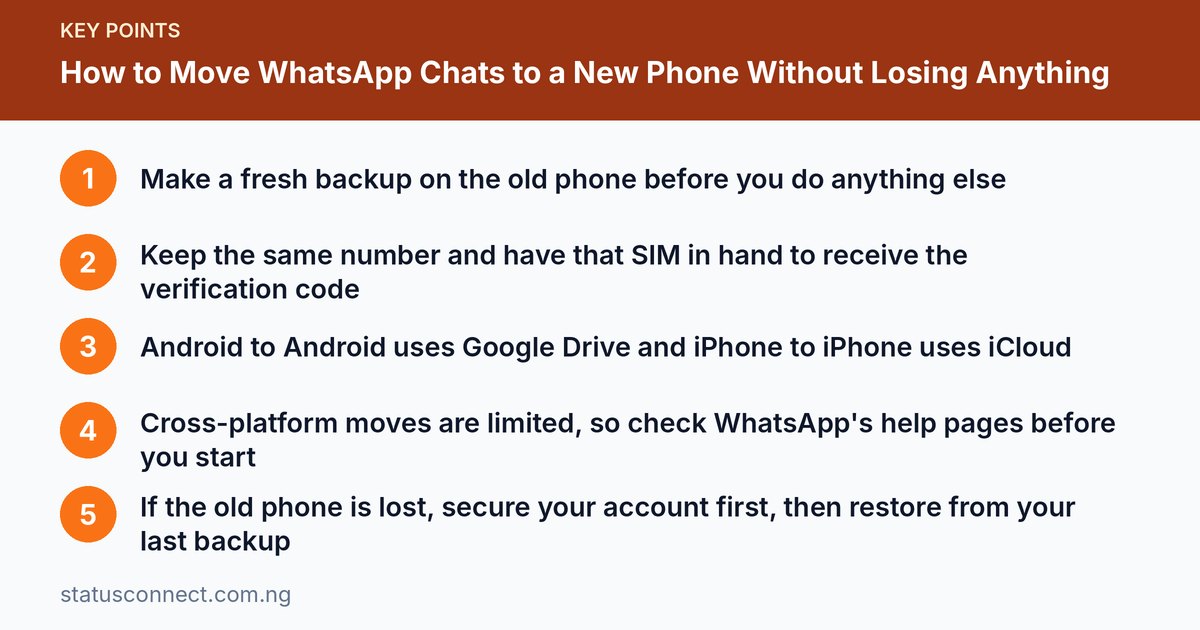
- Make a fresh backup on the old phone before you do anything else
- Keep the same number and have that SIM in hand to receive the verification code
- Android to Android uses Google Drive and iPhone to iPhone uses iCloud
- Cross-platform moves are limited, so check WhatsApp's help pages before you start
- If the old phone is lost, secure your account first, then restore from your last backup
Buying a new phone is exciting until you remember your WhatsApp. For many Nigerians, that app holds customer orders, delivery addresses, payment screenshots, voice notes from suppliers and years of family photos. Losing it is painful, and for a small business it can mean losing proof of who paid and who did not.
The good news is that moving WhatsApp is usually straightforward if you prepare properly. This guide walks through the common situations: Android to Android, iPhone to iPhone, switching between the two, changing numbers, moving the WhatsApp Business app, and what to do if your old phone is stolen or dead.
How WhatsApp stores your chats
This is the single most important idea in the whole article. WhatsApp keeps your chat history on your phone, not on a WhatsApp server that you can log back into from anywhere. When you install WhatsApp on a new phone and verify your number, you get your account back, but your old messages only appear if you restore them from a backup or use a supported transfer method.
That backup normally lives in one of two places:
- Google Drive for Android phones, tied to a Google account.
- iCloud for iPhones, tied to an Apple ID.
There is also a local backup file that many Android phones keep in storage, which can help in some cases. Cloud backups are the safer route because they survive a lost or broken phone.
Before you switch: the preparation checklist
Spend ten minutes on this, and most problems disappear.
- Update WhatsApp on the old phone to the latest version available in your app store.
- Make a fresh backup. Open WhatsApp settings and look for the chats or backup option. The wording varies by phone, but you are looking for something like "Chat backup" with a button to back up now.
- Check the backup finished. The screen usually shows the time of the last backup and its size. Make sure it says today.
- Include videos only if you need them. Videos make backups very large. If your data is limited, you may choose to leave them out, but remember they will then not be restored.
- Confirm your SIM. You will receive a verification code by SMS or phone call on the number. Keep that SIM working, with network, and in a phone you can reach.
- Note your Google or Apple account details. You must sign in to the same account on the new phone to find the backup.
- Make sure you have storage space. Both the cloud account and the new phone need enough free room.
A practical Nigerian tip: backups can use a lot of mobile data. Connect to a stable Wi-Fi network at home, an office or a cafe rather than burning through a data bundle. A weak connection is also the most common reason a backup stalls halfway.
Android to Android
This is the simplest case, and it works well when both phones use the same Google account.
- Back up to Google Drive on the old phone, as described above.
- Insert your SIM into the new phone, or have it ready to receive the code.
- Sign in to the same Google account on the new phone.
- Install WhatsApp and open it.
- Enter your phone number and the verification code.
- When WhatsApp offers to restore from Google Drive, accept.
- Wait for the restore to finish, then continue. Media may keep downloading in the background for a while.
Some Android phones also offer a direct phone-to-phone transfer using a cable or a local connection. Availability depends on the phone brands and software versions, so look in the official help pages for the current requirements rather than assuming it works for your pair of phones.
iPhone to iPhone
For iPhone users, iCloud does the work.
- On the old iPhone, make sure iCloud is on and that WhatsApp is allowed to use it.
- Back up your chats from the WhatsApp settings.
- On the new iPhone, sign in with the same Apple ID.
- Install WhatsApp, verify your number and choose to restore when prompted.
If your iCloud storage is full, the backup may fail. You can free space by deleting old items or by buying more storage through Apple, and you can find the current options on the Apple support site. Prices change, so check before you decide.
Switching between Android and iPhone
Moving across platforms is where people get stuck, because Google Drive backups and iCloud backups cannot be read by the other system. WhatsApp has added official ways to move chats between some phone types over time, but support depends on the phone model, the software version and the direction you are moving. Some combinations are supported and others are not.
Before you buy a new phone, open the WhatsApp help centre and search for transferring chats between Android and iPhone. Read the current requirements carefully. If your combination is not supported, you have these fallback options:
- Export important chats one by one. WhatsApp lets you export a chat as a text file, with or without media. This keeps a readable record but does not put the messages back inside the new WhatsApp.
- Save key media separately. Copy photos, product pictures and documents to cloud storage or a computer.
- Keep the old phone for a while. For a business, hold onto it until you are sure nothing important is missing.
Never download a third-party "WhatsApp transfer" tool from a random website or a link sent in a group. Many are unreliable, and some are built to collect your data. Our guide to spotting WhatsApp scams in Nigeria covers the warning signs.
Same number or new number
Same number. This is the easy route. You verify the number on the new phone, and WhatsApp moves your account there. The old phone will be logged out of that account.
New number, same phone. If you only change your SIM or number, look for the "change number" option in WhatsApp settings. It can move your account, groups and settings to the new number, but check the current help page first. Tell your contacts about the change, because they will otherwise keep messaging the old line. For vendors, it is wise to post a clear announcement on Status and message regular customers directly.
New number, new phone. Do the number change first while the old phone still works, then move to the new phone using a backup.
Remember that Nigerian SIMs that stay unused or are not recharged can be deactivated and later recycled. If your old number is reassigned to someone else, they can register it on WhatsApp. This is another reason to keep important numbers active.
Moving the WhatsApp Business app
The process is similar, but there are extra things to protect:
- Back up the Business app separately. It has its own backup settings, and a regular WhatsApp backup does not cover it.
- Check your business profile afterwards. Open it and confirm the description, address, hours and website are still there.
- Review your catalogue, labels, quick replies and away messages. These generally come back with your account, but check that nothing is missing before you tell customers you are open again.
- Restore two-step verification. If you use it, you will need your PIN. Our guide on two-step verification for a WhatsApp Business number explains how to set one up and what to do if you forget it.
If you are still deciding which app suits you, see WhatsApp Business vs WhatsApp Messenger. To set things up from scratch on the new phone, follow our WhatsApp Business setup guide.
If your old phone is lost, stolen or dead
Do these in order, and do them quickly.
- Get your SIM back. Visit your network provider's service centre with valid identification and ask for a SIM replacement for the same number. Rules and requirements are set by the networks and regulators and may change, so ask what they currently require.
- Register WhatsApp on the new phone. Once the SIM works, install WhatsApp and verify the number. This will log the account out of the lost phone.
- Turn on two-step verification straight away so a thief cannot re-register the number.
- Restore from your last cloud backup. You will lose messages sent after that backup, but everything before it should return.
- Warn your contacts. If someone might pretend to be you, post a Status and message close contacts and key customers.
- Change related passwords. This includes your Google or Apple account, and your banking apps if they were on the phone. Ask your bank about blocking access from the lost device.
If the phone also contained money apps, contact your bank or fintech provider immediately. For general guidance on payments, see our article on accepting payments safely on WhatsApp.
Common errors and how to fix them
- "No backup found." You are probably signed in to a different Google or Apple account, or the backup was never made. Check the account first. If you can still reach the old phone, make a new backup there.
- Verification code does not arrive. Check network signal, make sure the SIM is in the right slot, wait for the timer, and then request a call instead of an SMS. Too many attempts can cause a temporary block, so wait before trying again.
- Restore stuck or very slow. Move to stronger Wi-Fi, keep the phone plugged in and the screen on, and make sure there is enough free storage.
- Backup is huge. Large video collections are usually the cause. Delete clutter, and consider excluding videos next time.
- Chats restored but media missing. Photos and videos download after the main restore. Give it time, and confirm that media was included in the backup.
- Not enough storage on the new phone. Free some space or use a memory card if your phone supports one.
Mistakes to avoid
- Wiping or selling the old phone before confirming the restore worked.
- Forgetting that a backup is only as recent as its last run.
- Sharing your six-digit verification code with anyone, even someone claiming to be WhatsApp support or a friend.
- Moving to a new number without telling customers.
- Skipping the backup because "it worked last time."
Frequently asked questions
Can I restore my chats without a backup?
Usually not. Without a backup or a supported transfer, a fresh install starts empty. This is why a backup before switching matters so much.
Will my contacts move to the new phone automatically?
WhatsApp uses your phone's contact list. Your contacts normally come back through your Google or Apple account sync, or through a file. If you keep contacts as VCF files, see what a VCF file is and how to import it, and if imports fail, read how to fix VCF import problems on Android.
Can I use the same WhatsApp account on two phones?
The main account works on one phone at a time. WhatsApp offers linked devices for extra devices such as a computer or tablet, with limits that depend on the current version.
How often should I back up?
You can set automatic backups daily, weekly or monthly. If you run a business, daily is a sensible choice.
Final thoughts
A smooth WhatsApp move comes down to three habits: back up first, keep your SIM and accounts ready, and check that everything restored before you retire the old phone. Spend a little time on preparation, and your new phone will feel like the old one with a better camera. If you want to meet more business owners and keep your network organised, you can join the Status Connect community.