Contacts & VCF · 7 min read
VCF Import Not Working? How to Fix Missing Contacts, Duplicates and Imports That Will Not Show in WhatsApp
Troubleshooting guide for VCF import problems on Android and iPhone, covering failed imports, contacts missing in WhatsApp, duplicate contacts and how to delete a bad import without losing your own contacts.
By Noah Precious · Published 1 June 2026 · Updated 28 October 2026
Key takeaways
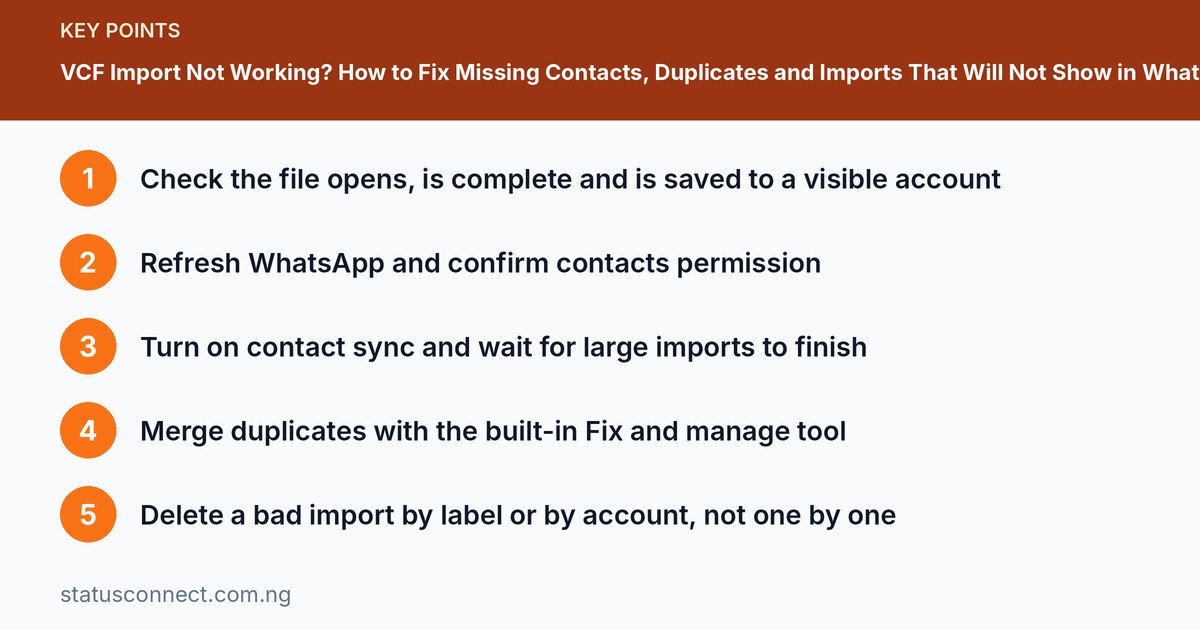
- Check the file opens, is complete and is saved to a visible account
- Refresh WhatsApp and confirm contacts permission
- Turn on contact sync and wait for large imports to finish
- Merge duplicates with the built-in Fix and manage tool
- Delete a bad import by label or by account, not one by one
You downloaded a VCF file, tapped import and nothing happened. Or the contacts imported but WhatsApp acts like they do not exist. Or you now have five copies of every name. These are the most common contact problems on Android and iPhone, and almost all of them can be fixed in a few minutes. This guide walks through each problem in order, from a failed import to cleaning up afterwards. If you are new to VCF files, start with our explainer on how VCF files and imports work.
Problem 1: The VCF file will not import
Check the file first
- Is it fully downloaded? A file that stopped halfway may be corrupt. Check the file size and download it again on a stable connection.
- Does it end in .vcf? Some downloads add extra extensions, like .vcf.txt. Rename it to end exactly in .vcf.
- Is it very large? Files with many thousands of contacts can fail on weaker phones. Split them into smaller files of a thousand to two thousand contacts.
- Is storage full? Free up space and try again.
Try another import method
If the Contacts app fails, upload the file to Google Contacts in a browser and let it sync to your phone. This route handles large files better than most phone apps.
Choose the correct account
When you import on Android, you are asked where to save the contacts. If you choose a hidden or unsynced account, the contacts may look missing. Pick your Google account.
Update and restart
Update the Contacts and Google apps, restart the phone and try again. Old versions of some phone brands' Contacts apps have bugs with large imports.
Problem 2: Imported contacts are not showing in WhatsApp
This is the most common complaint. Work through the steps in order.
- Refresh WhatsApp. On Android, open WhatsApp, tap the New chat button, open the three-dot menu and choose Refresh. On iPhone, pull down on the New chat screen.
- Check contacts permission. On Android, go to Settings, Apps, WhatsApp, Permissions, Contacts and allow it. On iPhone go to Settings, WhatsApp and switch Contacts on.
- Confirm the contacts are visible. In your Contacts app, open settings, find "Contacts to display" and select All contacts. Contacts saved to a hidden account will not appear in WhatsApp.
- Include the country code. Numbers saved as +234 813 000 0000 are matched more reliably than those starting with 0.
- Turn on sync. In Android Settings, Accounts, choose your Google account and make sure Contacts sync is on.
- Wait. Big imports trigger background syncing. Give it five to ten minutes on a stable connection and do not force-close the Contacts app.
- Remember that only WhatsApp users appear. A saved number that is not on WhatsApp will not show as a chat.
- Restart and update. Restart your phone and update WhatsApp from the Play Store or App Store.
If all fail, create a small test file with ten contacts and import it. If those appear, the problem is the size or format of the large file. For official troubleshooting, see the WhatsApp Help Center.
Problem 3: Duplicate contacts after importing
Importing the same file twice, or importing contacts you already had, creates duplicates.
Android
Open Contacts, tap Fix & manage (the menu name varies), then Merge & fix and choose Merge duplicates. Review the suggestions and confirm. You can also use Google Contacts in a browser: go to Merge & fix in the sidebar and select Merge duplicates.
iPhone
Open Contacts, tap Lists or the menu and look for Duplicates Found at the top. Tap Merge All. Apple also lets you link contacts manually.
Prevent duplicates
Before an import, ask yourself whether you already have those numbers. Some communities provide options to skip numbers already on your phone. For example, Status Connect's Freemium downloads can leave out contacts you already have saved.
Problem 4: You need to delete an imported batch
You imported a big file and want to remove those contacts without deleting your own. Do not delete them one by one.
Method 1: Use a label or group
If you added the imported contacts to a label before or after importing, open the label in Google Contacts, select all, then delete. This is why we recommend labelling each import batch.
Method 2: Use the import record in Google Contacts
In Google Contacts on a computer or browser, open Trash and the Undo changes feature. Under Settings, choose Undo changes and pick a time before the import. All changes after that time, including the import, will be reversed. This works for changes in the last thirty days. It also reverses any other changes made in that period, so use it carefully.
Method 3: Delete by account
If you imported into a separate account, such as a spare Google account, you can remove the whole account from the phone and the contacts disappear from the device.
Method 4: Restore from a backup
If you backed up before importing, wipe the contact list and restore the backup. Which brings us to our next point.
Problem 5: Names look strange or details are missing
Sometimes the import works but the results look wrong. Here are the usual causes.
- Strange symbols instead of letters. The file may use a different text encoding. Open it in a text editor, save it again as UTF-8 and re-import.
- Only the first contact imported. A single broken entry in the middle can stop the rest. Split the file into smaller parts to find the faulty section.
- Numbers without the country code. Fix them in Google Contacts in a browser, where you can edit many entries at once, rather than on the phone.
- Everything saved under one name. This happens when the name lines are blank in the file. Check the original list before importing again.
A simple order for troubleshooting
When nothing seems to work, resist the urge to try everything at once. Follow this order so you know what fixed it.
- Confirm the file opens and ends in .vcf.
- Import ten contacts as a test.
- Check the account and the "Contacts to display" setting.
- Refresh WhatsApp and check permissions.
- Restart the phone and wait ten minutes.
- Try Google Contacts in a browser.
Frequently asked questions
Why do some imported contacts show in my phone book but not in WhatsApp?
The most likely reason is that those numbers are not registered on WhatsApp, or they are saved without the country code. Add +234 and refresh. If the person does use WhatsApp, you can also message them through a click to chat link without saving the number at all.
Can too many contacts slow down my phone?
Very large lists can make syncing slower, especially on older phones with little storage. Import in batches and remove contacts you no longer need.
I imported to the wrong account. What now?
Use the Undo changes option in Google Contacts if you act within thirty days, or delete the label you created for that batch. Then import again into the correct account.
Do I need internet to import a VCF file?
Importing into the phone itself works offline, but syncing to Google or iCloud and WhatsApp's refresh need a connection. If contacts do not appear, check your data or Wi-Fi first.
Back up before every big import
Export your existing contacts to a VCF file and store it in a safe place. This takes thirty seconds and saves hours if something goes wrong. Instructions are in our VCF guide.
When to ask for help
If you used a community download, such as a Status Connect file, and your import still fails after these steps, contact the community's support with the model of your phone, the error message and the size of the file. Details help support fix the problem faster. You can reach us through the contact page.
Staying safe
Only import files from sources you trust, and never share your WhatsApp verification code with anyone offering contacts. See how to spot WhatsApp scams in Nigeria.