Contacts & VCF · 9 min read
How to Recover Deleted WhatsApp Messages and Media on Android and iPhone
What you can and cannot recover when WhatsApp messages are deleted: backups, reinstalling, Android notification history, exported chats and how to avoid recovery scams.
By Noah Precious · Published 28 October 2026
Key takeaways
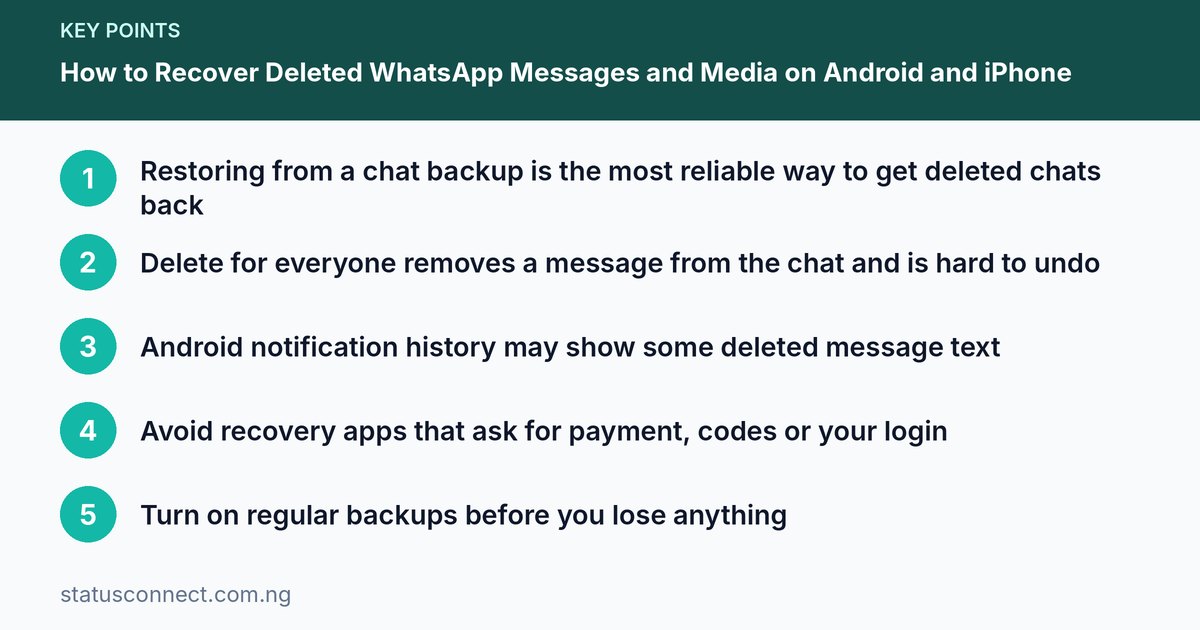
- Restoring from a chat backup is the most reliable way to get deleted chats back
- Delete for everyone removes a message from the chat and is hard to undo
- Android notification history may show some deleted message text
- Avoid recovery apps that ask for payment, codes or your login
- Turn on regular backups before you lose anything
Deleting the wrong chat is stressful, especially when it holds an order, an account number or a customer's delivery address. The honest answer to "Can I get it back?" is: sometimes. It depends on whether you had a backup, how you deleted the message, and how quickly you act. This guide explains what is possible on Android and iPhone, what is not, and how to avoid the fake "recovery" services that target people in a panic.
Menu names and steps differ between phone brands and app versions, so treat the paths below as a guide and check the official WhatsApp help centre for your exact version.
First, stop and think
When you notice something is missing, do not rush. A few quick checks may solve it before you try anything drastic.
- Do not uninstall WhatsApp yet. Reinstalling can overwrite or lose data if no backup exists.
- Check whether the chat is archived. Archived chats are hidden from the main list, not deleted. Look for the archived section at the top or bottom of your chat list, depending on your phone and version.
- Search for the contact or a keyword using the search bar. The chat may simply have scrolled out of view.
- Check whether you cleared the chat or deleted it. Clearing removes messages but leaves the chat open, while deleting removes the chat from your list. Both can be restored from a backup in similar ways.
What "delete for me" and "delete for everyone" mean
Understanding these two options explains most recovery questions.
- Delete for me removes the message only from your phone. The other person still has their copy. This is the easiest case, because you can ask them to forward or screenshot it.
- Delete for everyone removes the message from the chat for you and the recipient, and they may see a note that it was deleted. WhatsApp sets a time limit within which this can be done, and the limit may change, so check the current rule in the help centre.
If someone deleted a message for everyone, there is no official button to bring it back. Be careful about any app or website that claims to reveal such messages. Some of these tools are unreliable, and some are scams.
Method 1: Restore from a chat backup
This is the most reliable method, and it works only if a backup existed before the messages were deleted.
On Android
WhatsApp can back up to Google Drive, and it also keeps local backup files on the phone. Typical steps:
- Confirm that a backup exists. Open WhatsApp settings and look for a chats or chat backup section. The wording varies by phone. It should show the time of the last backup.
- Make sure that backup is older than the deletion. If a newer automatic backup already ran after the deletion, it may no longer contain the lost messages.
- Uninstall and reinstall WhatsApp from the Google Play Store.
- Open it, verify your phone number with the code, and follow the prompt to restore your chats and media.
- Wait for the restore to finish before you leave the screen.
If you backed up to Google Drive, you must sign in with the same Google account that holds the backup. For account help, use Google support.
On iPhone
WhatsApp on iPhone uses iCloud for backups.
- Check in WhatsApp settings for the chat backup section and look at the date of the last backup. Wording varies by version.
- Make sure iCloud is turned on for your Apple ID and that you have enough iCloud storage. Apple's support pages explain iCloud storage.
- Delete and reinstall WhatsApp from the App Store.
- Verify your number and choose to restore from the iCloud backup.
Important warning for both phones: a restore replaces your current chat history with the backup. Messages received after the backup may be lost unless you save them first. If your recent chats matter, export or screenshot them before restoring.
Method 2: Local backup files on Android
Many Android phones create a daily local backup stored in the phone's storage, usually kept for a few days. Some people can restore from an older local file using a file manager app, but the folder names and process vary by phone and Android version, and the wrong step could overwrite data. If you are not comfortable doing this, ask a trusted technician, and do not hand over your phone with WhatsApp logged in to someone you do not know.
Method 3: Check Android notification history
On some Android phones, a notification history feature keeps a log of recent notifications, including the text of messages you received. This can sometimes show the words of a message the sender later deleted.
- The feature is not on by default on every phone. The setting is often found under notifications or advanced notification settings, but the name differs by brand.
- It only helps if it was turned on before the message arrived.
- It stores text only, not images or voice notes, and the log may be cleared after a period.
If it is off, turning it on now will not recover older messages. It could help you in the future.
Method 4: Ask the sender or other people in the chat
This simple option is often the most successful.
- If you deleted a message for yourself, ask the other person to forward it, copy the text or send a screenshot.
- If it was a group chat, any member may still have it.
- For business orders, ask the customer to send the details again. Most customers will understand.
- For payments, check your bank app or SMS alerts, because those records are independent of WhatsApp.
Method 5: Exported chats and saved media
Two things might already hold copies of your content without you remembering.
- Exported chats. WhatsApp has an option to export a chat as a file, usually from the chat's menu with or without media. If you ever exported or emailed a chat to yourself, search your email and files.
- Saved photos and videos. If your phone saves received media to the gallery, deleted chat messages may not have deleted the pictures. Check your gallery or file manager. Our guide on saving WhatsApp Status photos and videos covers related tips.
What is generally not possible
Be realistic about these cases:
- Messages deleted before you ever made a backup, with no copy on any other device.
- Messages deleted for everyone that you never saw or captured elsewhere.
- Disappearing messages that expired, unless a copy was kept.
- Media that expired or was removed from WhatsApp servers and is not stored on any device.
- Chats from an old phone that is lost, with no backup and no other copy.
WhatsApp states that it does not keep your messages on its servers after delivery, and that backups are managed by you. For the current details, read the official help pages.
Beware of "recovery apps" and scams
When people panic, scammers appear. Be very careful with anyone or anything that offers to "recover deleted WhatsApp messages" for a fee.
- Apps that ask for your WhatsApp login or verification code. Never share this six-digit code. It lets someone take over your account. Read our guide on spotting WhatsApp scams in Nigeria.
- Requests for payment before showing any result. Genuine data recovery is difficult and results are never guaranteed.
- Sites that promise to show other people's deleted chats. These are often illegal attempts at spying, and they are often malware or phishing.
- Fake support accounts on social media that reply to your complaint and ask you to message them privately.
Only download apps from the official stores, and use only official WhatsApp support channels. If you suspect your account has been taken over, protect it with two-step verification and check the linked devices list in WhatsApp Web and Linked Devices safely.
How to avoid losing chats in the future
A few minutes of setup can protect important conversations.
- Turn on automatic backups to Google Drive on Android or iCloud on iPhone, at a regular schedule such as daily or weekly. Include media only if you have enough storage.
- Back up before changes. Do a manual backup before you repair, reset, sell or switch your phone. Our guide on moving WhatsApp chats to a new phone walks through this.
- Record important details elsewhere. Save customer addresses, orders and account details in a notebook or sheet, not only in chats.
- Be careful with "delete" buttons. Pause before you tap delete on a chat or select all.
- Keep enough storage. A full phone can cause backups to fail without you noticing.
- Protect your phone and SIM. If your SIM is lost, contact your network provider quickly and secure the number.
Business owners should also keep a separate record of customers and sales. If you use the Business app, read WhatsApp Business app setup in Nigeria for backup and account tips.
Frequently asked questions
Can I recover messages that were deleted for everyone?
There is no official way to restore them. You may be able to get the content from the other person, a backup made before the deletion, or the Android notification history if it was enabled earlier.
Will reinstalling WhatsApp bring back my chats?
Only if you have a usable backup and restore it during setup. Without a backup, reinstalling will start you with an empty chat list.
Is it safe to use apps that claim to recover deleted WhatsApp chats?
Treat them with strong caution. Many do not work, some collect your data or install harmful software, and some are scams. Stick to official backup and restore options.
Can I recover chats if I lost my phone?
Possibly, if you had a backup in Google Drive or iCloud. Get a new SIM with the same number, install WhatsApp on the new phone, verify your number and choose to restore. Without a backup, the old chats are generally gone.
Final thoughts
The best recovery plan is the one you set up before anything goes wrong. Turn on backups, keep important details in more than one place, and be patient if something does get deleted: check archives, ask the other person, and restore from backup carefully. Features and limits can change, so confirm current steps on the official help pages. If you want more practical guides for sellers and freelancers, join the Status Connect community.